






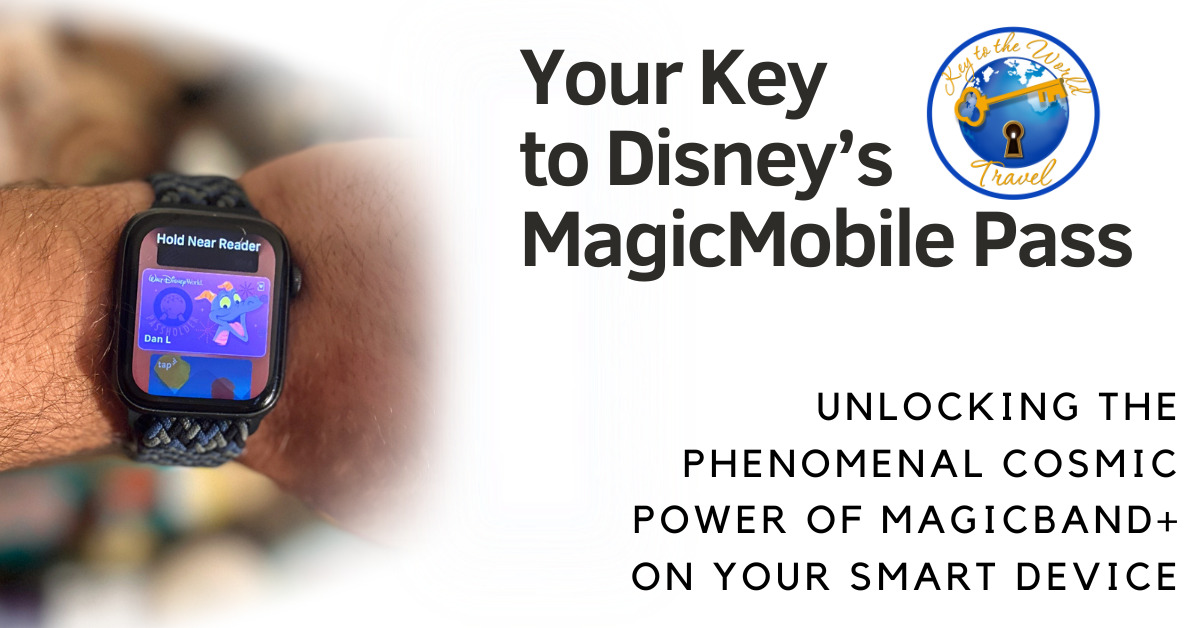
Can’t find the perfect MagicBand+ design to express your love of all things Disney? Don’t feel like having to remember one more accessory when heading out to the parks?Or maybe you just got to the theme park and realized you left your MagicBand at home. Have no fear, Disney’s MagicMobile Pass is here to help you navigate the World (or the Land)like a pro!
What is it, and who can use it?
The MagicMobile Pass service is available to Walt Disney World and Disneyland Resort guests, and is found in the My Disney Experience app. It creates a virtual pass card that can be added to your iPhone, Apple Watch, or Android digital wallet. Once activated, it gives your mobile device many of the powers of MagicBand+.
How Does MagicMobile Pass work, and what can it do?

Use MagicMobile Pass just like a MagicBand+ or Key to the World card. Once you activate the pass and add it your digital wallet, you can tap your device around the parks and resorts to:
- Enter theme parks with valid theme park admission linked in your My Disney Experience account
- Tap in to virtual attraction queues and redeem Lightning Lane reservations
- Link Disney PhotoPass images to your Disney account
- Charge food and merchandise purchases to the payment card on file at your Disney Resort hotel room during your stay
- NOTE, MagicMobile pass CAN NOT unlock your hotel room door. However, when you use online checkin through the My Disney Experience app, you can use the app as a room key. No need to stop at the lobby to pick up a room key!
How to set up your MagicMobile Pass
You can get your Disney MagicMobile pass up and running in three easy steps:
- Link Tickets and Reservations – Link all your theme park tickets, Disney Resort hotel reservations, memberships and annual passes to your Disney account
- Set Up Your Pass and Select a Style – In the My Disney Experience app, select the 3-line “hamburger” icon in the bottom right corner, and select Disney Magic Mobile. Follow the instructions on the screen to select your pass style.
- Add MagicMobile Pass to Your Digital Wallet – select the plus icon (+) and follow the prompts to add your MagicMobile pass to your Apple wallet on iPhone or Apple Watch, or Google Wallet on Android devices.
You can also set up MagicMobile passes for any planning party members you manage in your Disney account. Follow the steps above in the app to create digital passes for the rest of your party, or to link their existing passes to your device.
Disney recommends that for any guests in your planning party that you don’t directly manage plans for, you let them create their own Disney MagicMobile pass on their own device.
Using Disney’s MagicMobile Pass in the theme parks
Make sure you have bluetooth enabled on your mobile device. Then just hold your smart device near any touch point, just like you would a MagicBand+. If you’re managing MagicMobile passes for multiple people, just swipe to each pass and repeat the tap-in process until everyone is checked in. Note, the process is slightly different depending on if you’re using an Apple or Android device.
- For Apple devices, Express Mode is enabled wen you add the MagicMobile pass to your Apple Wallet. This allows your to use your pass with just a tap, exactly like a MagicBand. You don’t have to open your wallet app, or even unlock your device. The touchpoint will activate your pass, and if necessary you can swipe through the passes of other members of your party. The real magic happens when using an Apple Watch- since you don’t have to open anything up, just tap, it feels just like using a MagicBand.
- For Android devices, you’ll have to unlock your device first to use your pass. It only takes an extra second, and still has all the same functions as a MagicMobile pass on iPhone.
Ready to find out just how convenient Disney’s MagicMobile Pass can make your next Disney theme park vacation?
Contact your Key to the World Travel® advisor today, or send us a quote request to get planning your next magical Disney vacation!